Help Center
Short guides for getting the most out of MyYoda.
Getting Worksheets on WhatsApp
On any worksheet, tap Send to WhatsApp (just WhatsApp on a phone, at the bottom of the screen) to get it as a PDF on your verified WhatsApp number — handy for printing from your phone or working on a tablet. Once an answer key is unlocked, a Send Answers button appears next to it too.
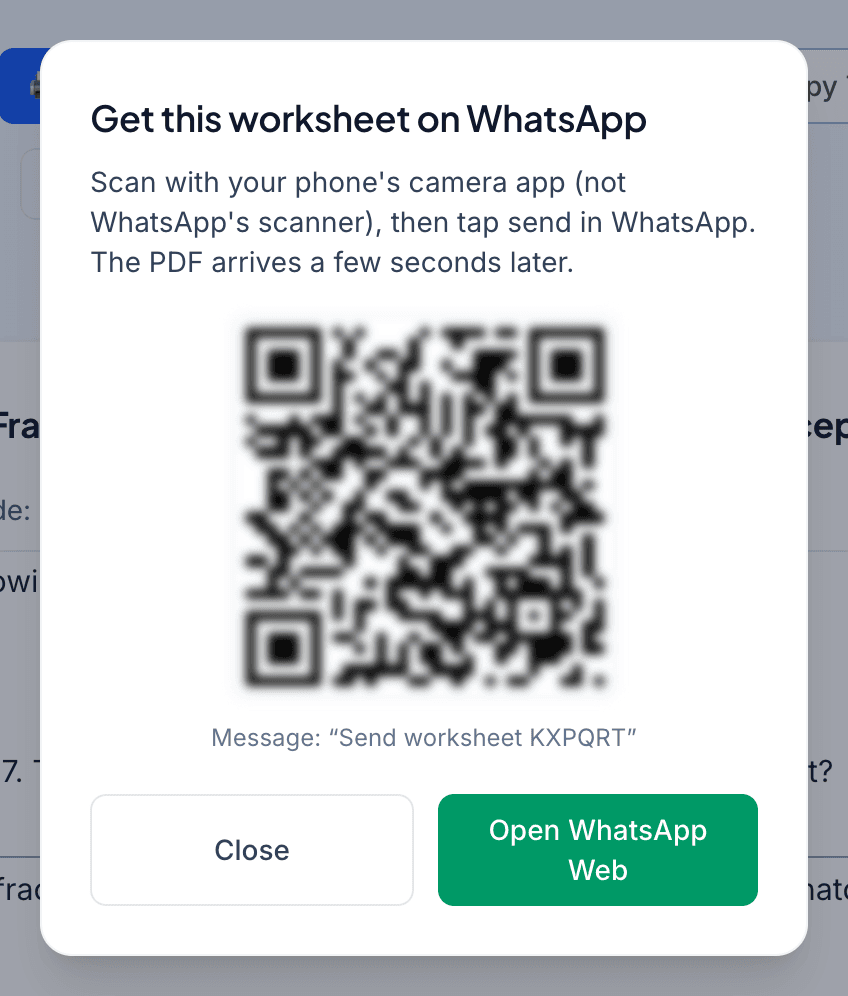
On a phone, the button opens WhatsApp with a short message ready, like “Send worksheet KXPQRT”. Tap send, and the PDF arrives a few seconds later. On a laptop, scan the QR code with your phone’s camera app (not WhatsApp’s scanner) and send the message from your phone.
The PDF is only ever sent to the WhatsApp number verified on your account, so a forwarded message won’t send your worksheet to anyone else.
Sending to WhatsApp is included in all paid plans. On the free trial, or after a plan ends, the button shows a lock and takes you to the plans page.